Under the Mac heading, click on OKIOCAM Firmware Update Tool to start the download.
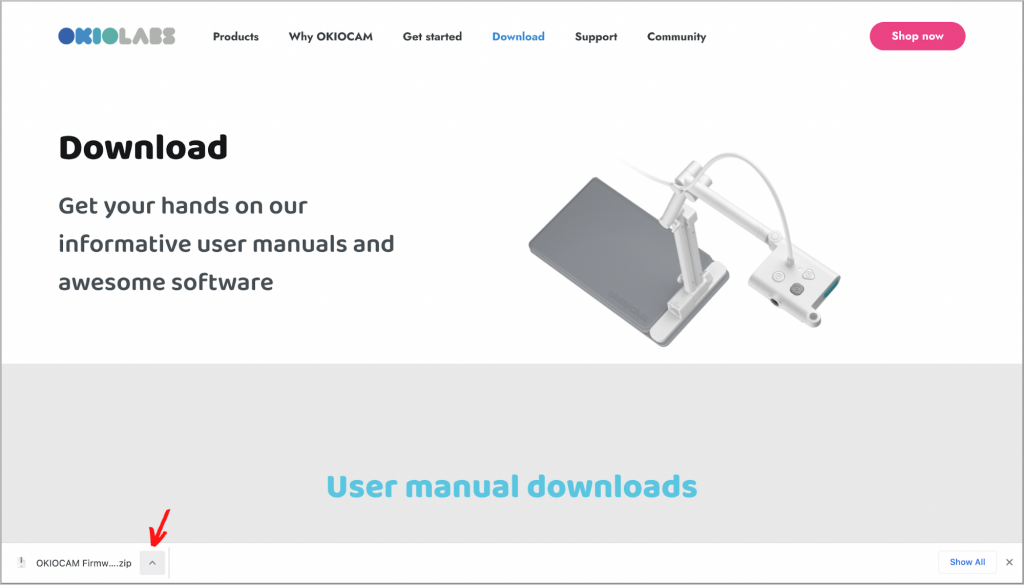
After the download has completed, click on the upward-facing arrow in the bottom left-hand corner.
Select Show in Finder.
After the file has opened in Finder, right-click on it and select Open With > Archive Utility (default).
The file will be unzipped. Double-click on the unzipped folder to open it.
After opening the folder, double-click on OKIOCAM Firmware Update Tool to launch it.
You’ll see a message asking you to confirm that you wish to launch the program. Click Open.
The OKIOCAM Firmware Update Tool will open. Click Update.
Confirm that you wish to proceed with the update by clicking OK.
Your OKIOCAM’s firmware will then be updated. The process normally takes no more than several seconds. Once the update is complete, you will see the message below. Disconnect and reconnect your OKIOCAM.
After reconnecting your OKIOCAM, you will see the message below. Click on the X in the top-left corner to close the OKIOCAM Firmware Update Tool.



Comments
0 comments
Please sign in to leave a comment.