
OKIOCAM is the first USB document camera and webcam specifically designed for education users. The OKIOCAM Stop Motion app, which allows you to experience all of the functions and fun of stop-motion animation, is available to download from the OKIOCAM website.
This guide will walk you through the installation process for OKIOCAM Stop Motion desktop application.
Step 1: Visit the OKIOLABS download page. https://www.okiolabs.com/download/
Scroll down to the “apps and software download” section and click on OKIOCAM Stop Motion in the “Mac” download column to start the download.
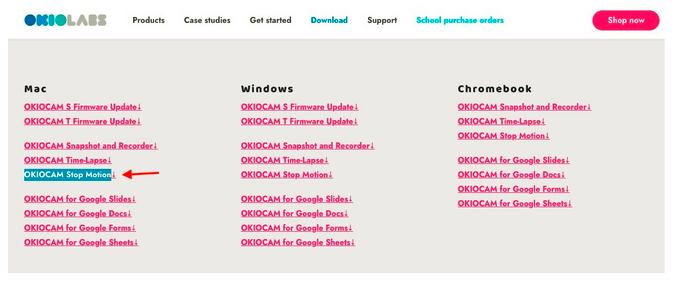
Step 2: The OKIOCAM Stop Motion application will automatically start downloading. Wait until it has finished downloading and go to the “Downloads” folder in your “users” folder.
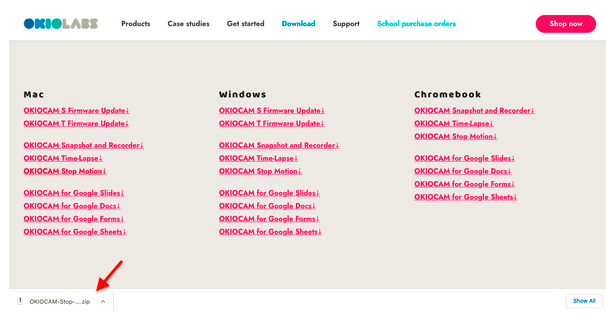
Step 3: Double click the “ZIP (.zip)” file to open it and a “(.dmg)” file will appear on the desktop or in the same dedicated folder.
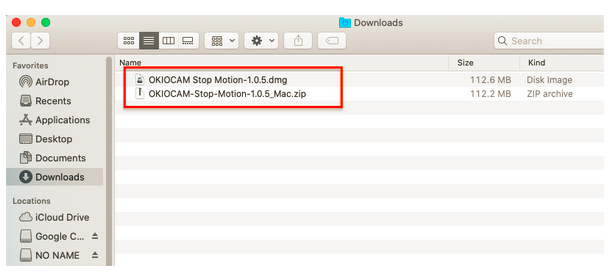
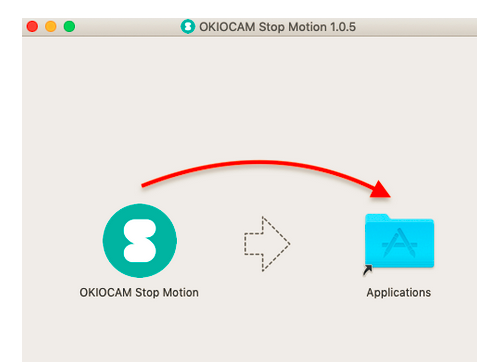
Step 4: Double click the “(.dmg)” file and a window will pop up containing the OKIOCAM Stop Motion application icon and “Applications” folder icon. Drag the OKIOCAM Stop Motion icon to the “Applications” folder icon.
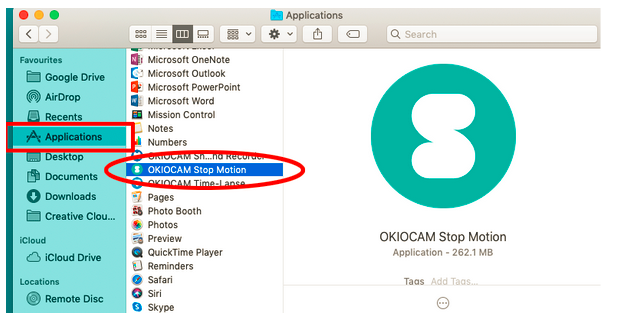
Step 5: Once downloaded, go to the “Applications'' folder and scroll down until you see OKIOCAM Stop Motion. Double click it to open the application.
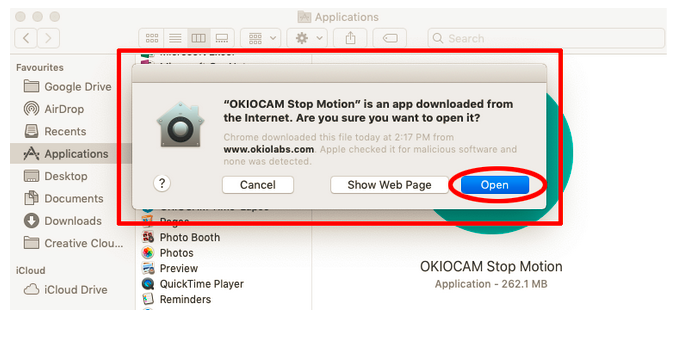
Step 6: When prompted by the OKIOCAM Stop Motion confirmation pop up window, click Open.
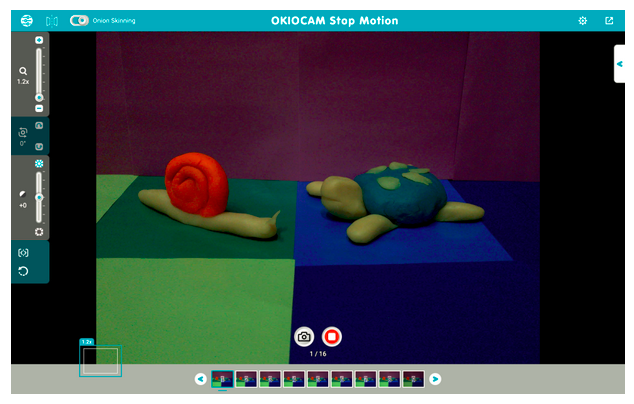
Step 7: Enjoy using your new OKIOCAM Stop Motion application and let your imagination run wild with animation!
Comments
0 comments
Article is closed for comments.