
Saving Projects
Once you have started working on a project and need to save it to continue working on it at a later time, you can do so by following the steps below.
Step 1: When accessing the screen with the blue “Save Current Version” text-button on the right side, click the text and you will be presented with the option to save as either a video, images (size may be large), or project (size may be large).

- Video - Will save the project as a finished video (can not be re-uploaded to the app).
- Images (size may be large) - Will save the project as individual images (can not be re-uploaded to the app).
- Project (size may be large) - Will save the project as a (.zip) file which can be re-uploaded to the app for modification or continuation at a later time.
Step 2. Choose “Project (size may be large)” and you will be presented with the opportunity to name the project, which will save as a (.zip) file. By default, the project will save in the OKIOCAM Stop Motion Files folder, which can be changed to your preference.
Note: Choosing the video or images (size may be large) option will mean that the project will not be compatible to be modified at a later time.

Step 3. Click Save. You’ll have a zip file. Keep this file to continue working at a later time.
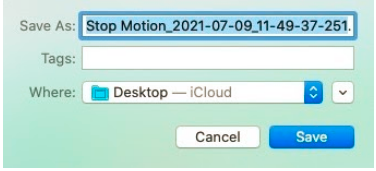
Continue working on a previous stop motion by Importing Projects
Step 1: When reopening the OKIOCAM Stop Motion application, If you wish to continue working on an unfinished project, you can select the project by clicking the blue ‘ZIP’ button on the right at the center-bottom of your screen and navigating to the desired file.

Step 2: Once the file has been imported, your project will appear. Click Back to continue working on your project.

Note: If you have previously closed the OKIOCAM Stop Motion application without saving or discarding a project, you will be prompted with a message giving you the option of continuing or discarding your previous work. Select the desired button as required.

Review Mode
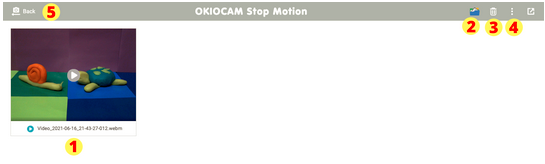
- Left-click on a file to select it. Right-click on a selected file to be presented with the option to delete the file.
- Press
 to open your OKIOCAM Files folder.
 - Press
 to delete any selected files from your computer.
 - Press
 to be presented with the option to delete all files, or view information (File Name, Create Date, File Size) for a selected file.
 - Press
 to go back to the Live View.
Comments
0 comments
Article is closed for comments.