
OKIOCAM is the first USB camera specially designed for education users, and OKIOCAM Stop Motion is one of the primary applications in the OKIOCAM’s product package. This guide will walk you through the installation process for OKIOCAM Stop Motion.
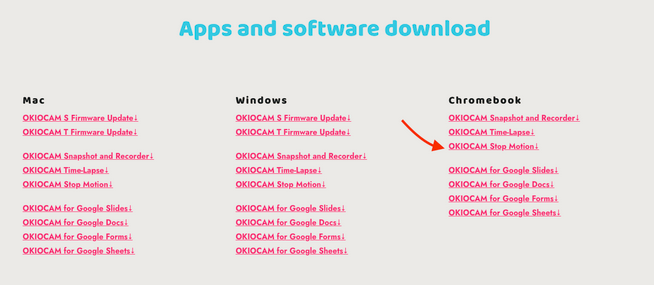
Step 1: Visit the OKIOLABS download page. https://www.okiolabs.com/download/
Scroll down to the “apps and software download” section and click on OKIOCAM Stop Motion in the “Chromebook'' column. A new tab will open, taking you to the Chrome Web Store.
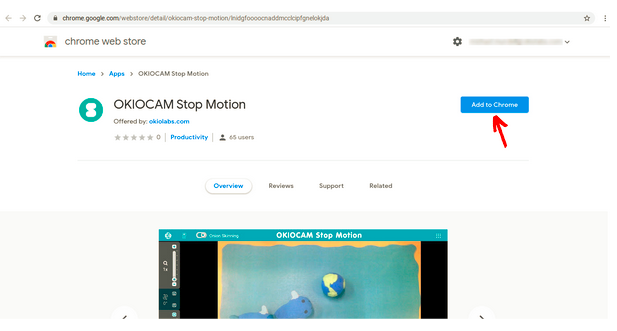
Step 2: In the newly opened tab, click Add to Chrome.
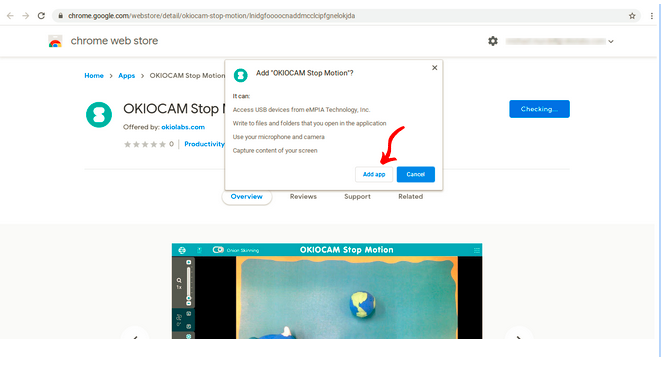
Step 3: A dialog box will appear, informing you of how OKIOCAM Stop Motion can interact with your Chromebook. Click Add app. The app will then begin downloading.
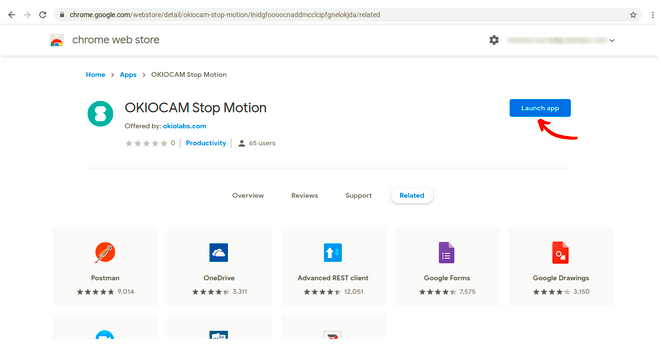
Step 4: Once the download has completed, click Launch app.
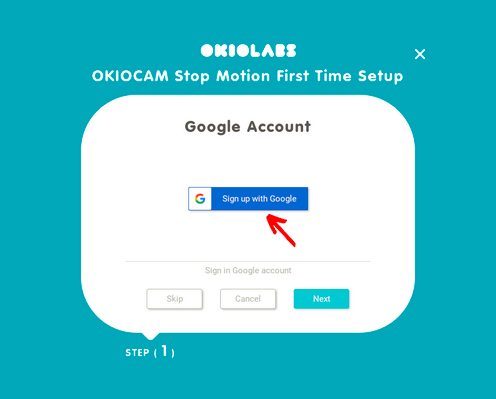
Step 5: OKIOCAM Stop Motion will open. Click Sign up with Google.
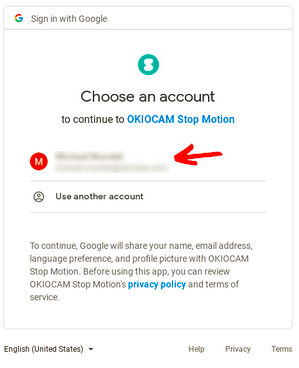
Step 6: Choose the Google account that you wish to use.
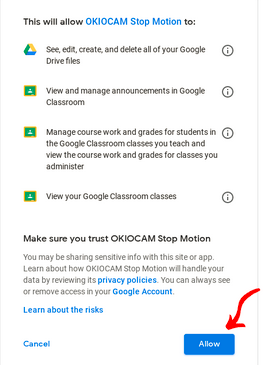
Step 7: Confirm that you grant OKIOCAM Stop Motion access to your Google Drive and Google Classroom by clicking Allow.
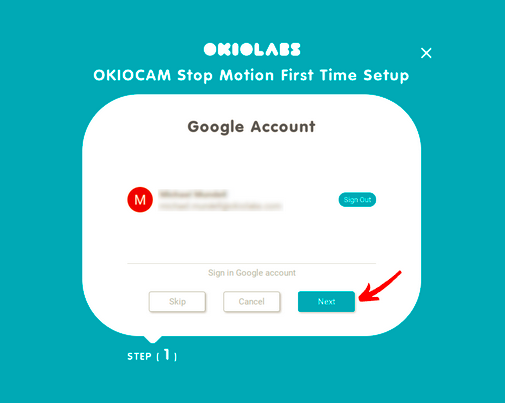
Step 8: Click Next.
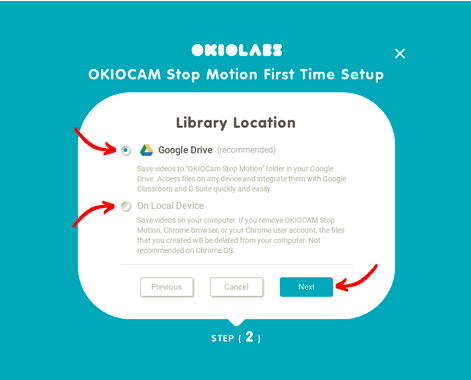
Step 9: Choose the location that you want to save your videos to. Select Google Drive to save them to your Google Drive. Select On Local Device to save them locally on your Chromebook. It is recommended that you choose Google Drive. Once you have chosen, click Next.
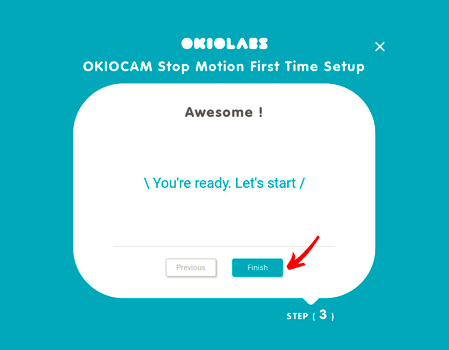
Step 10: Click Finish. OKIOCAM Stop Motion is now installed.
Comments
0 comments
Article is closed for comments.